Create a Layout
When To Use This Page
Use this page when you need to prepare a new sheet cutting layout from the beginning. It is mainly for the Projects User, who creates the first draft and gets it ready for review.
Before You Begin
Before you start, make sure you have the basic job information ready, including the part or project details your team expects to see on the layout. It is also a good idea to confirm any important quantities, references, and notes before entering the draft so you do not have to rework it later.
At this stage, the layout should remain in Draft while you complete and review it.
Steps
- Open a new layout.
Start a fresh layout record when you are creating a layout for new work or for a version that has not been entered yet. As a Projects User, this is your working copy where you can prepare everything before it moves to review.
- Fill the core layout details.
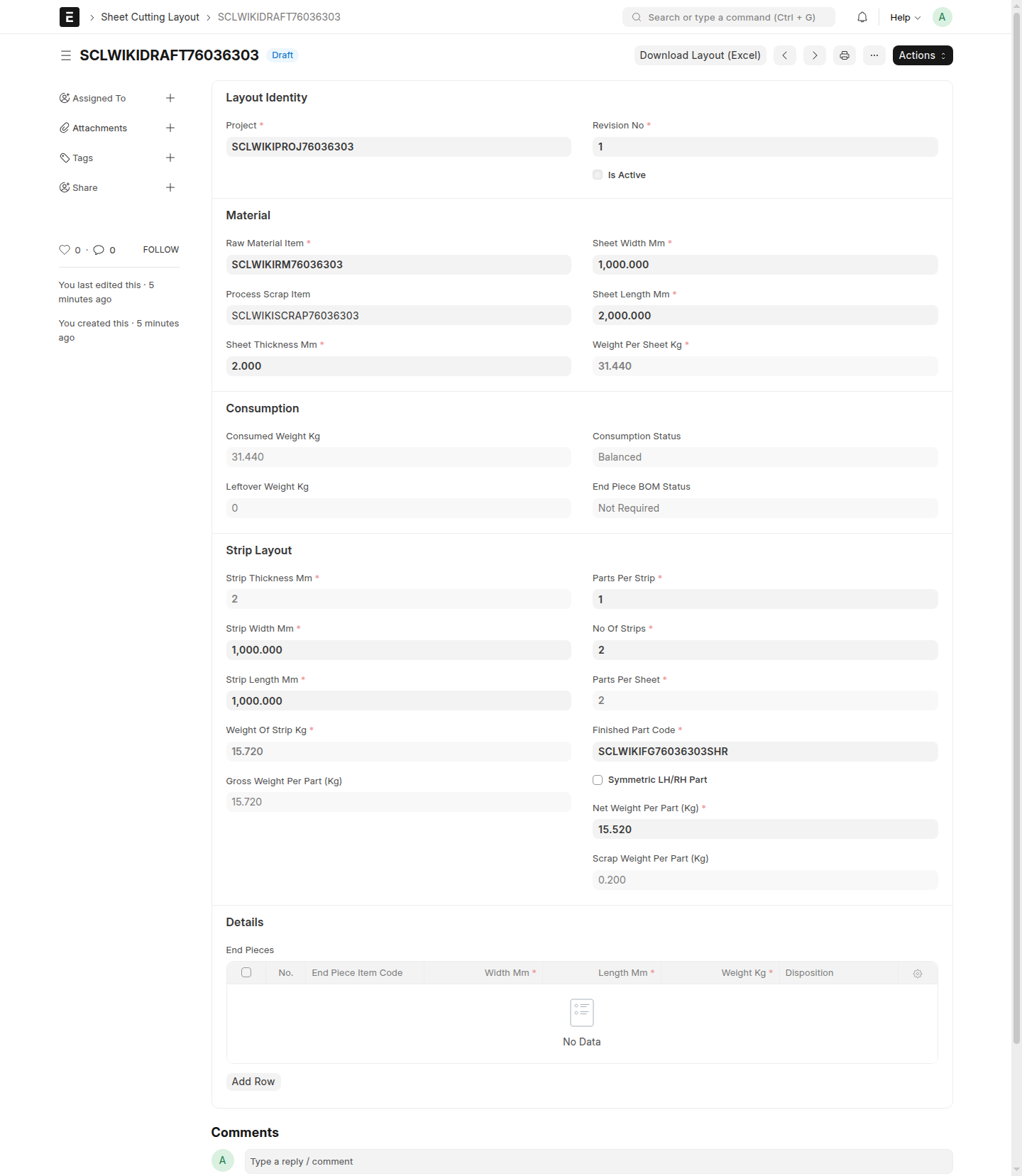
Enter the main information your team uses to identify and understand the layout. Focus on the details that help other users review the layout confidently, such as the job reference, item details, planned sheet use, and any notes needed for the next team member. Before moving on, confirm that the layout clearly matches the intended part or project and that the quantities or sheet-use details reflect the work you expect this layout to cover.
- Save the draft.
Save your work so the layout is stored in Draft. Saving early is useful if you need to pause, confirm details with a teammate, or come back later to finish the entry.
- Review the draft before submission.
Read through the layout carefully before sending it forward. Check that the key details are complete, the information is easy to understand, and the draft reflects the version you want reviewers to approve. In practice, it helps to confirm that the job or item reference is correct, the main quantities still match your source information, and any notes a reviewer would need are already included. If something looks unclear, correct it while the layout is still in Draft.
What Happens Next
Once the draft is complete and reviewed, the Projects User can move it forward using Submit for Check. That changes the layout from Draft to Submitted for Check, where it is ready for review by the Projects Manager.
Common Mistakes
- Starting a new layout before gathering the basic details needed to complete it.
- Saving a draft with missing or unclear information that will slow down review later.
- Assuming a saved draft is already under review. It stays in
DraftuntilSubmit for Checkis used. - Skipping the final review and noticing mistakes only after the layout has been sent forward.
Screenshots
The screenshots on this page help a Projects User recognize the normal drafting checkpoints, from opening a new layout to confirming that the record is saved and ready to review before submission.
- Opening a new layout
- A layout being filled in as
Draft - A completed draft ready for submission